First things first, if you haven’t done so already, you will need to create your free Azure account to get started. You get an initial 200$ Azure credit and 30 days to use it on Azure services. Beyond that, Azure is pay as you go service, so make sure to make the most out of the free month trial!
Creating a resource group for WTA Insights
A resource group is a logical container for resources that you want to manage (deploy, update, delete) together.
Let’s create a resource group to hold all resources for the WTA Insights solution.
In the Azure Portal, choose Create a resource and browse for the resource or search by resource name – in this case resource group. Hit Create to get to the Create a resource group screen.
Fill out project details: choose your Azure subscription, give the resource group a name – for example rg-wta and select an Azure location. Click Review + create.
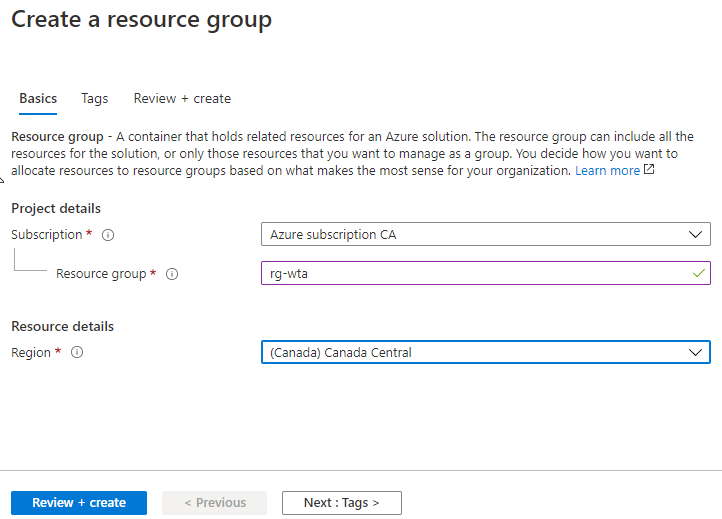
Microsoft has guidelines in place for naming Azure resources, so you can easily find resources by grouping them together as much as possible:
- use lowercase and where allowed hyphens
- use resource type prefixes: resource group rg–, Azure SQL server sql–, Azure SQL database sqldb–, Azure Data Factory adf–, Data Lake Store account dls–, Azure Databricks workspace dbw–
- use deployment environment/resource group/containers/folder names suffixes
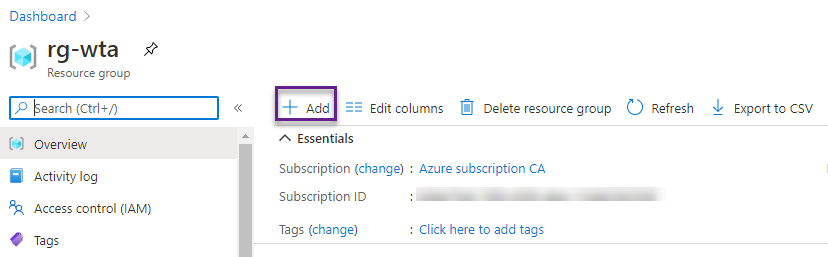
Once a resource is deployed you get a notification. Choose Go to resource group and click Add to add a resource to the resource group.
Creating a storage account
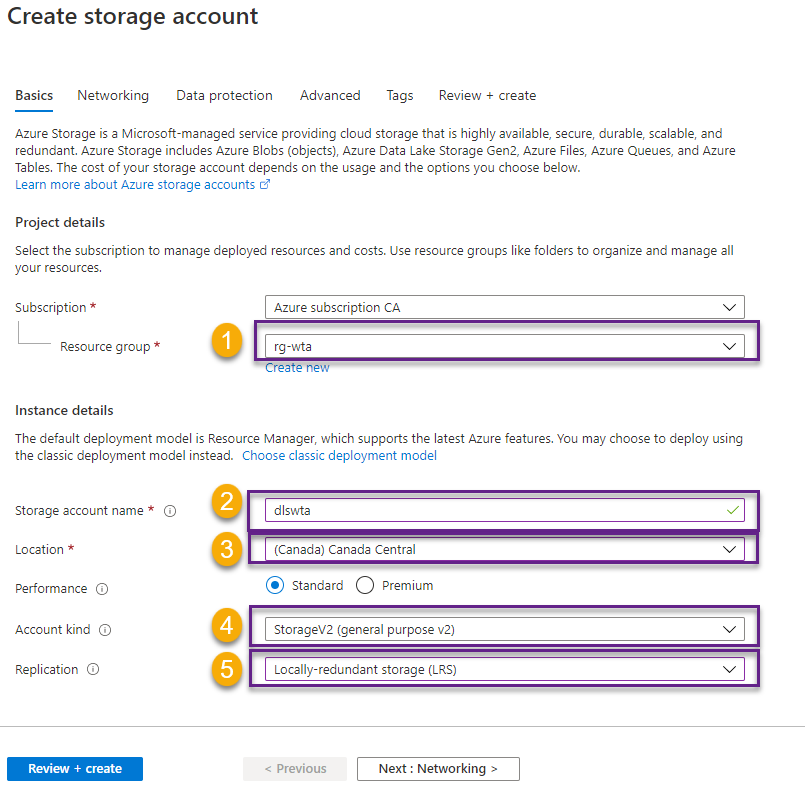
We will provision the Azure Data Lake Storage, that is going to be the data store for the tennis_wta dataset. In the Azure Marketplace, select Storage account.
In the Create storage account form, fill in the settings as shown below. Leave all other fields default.
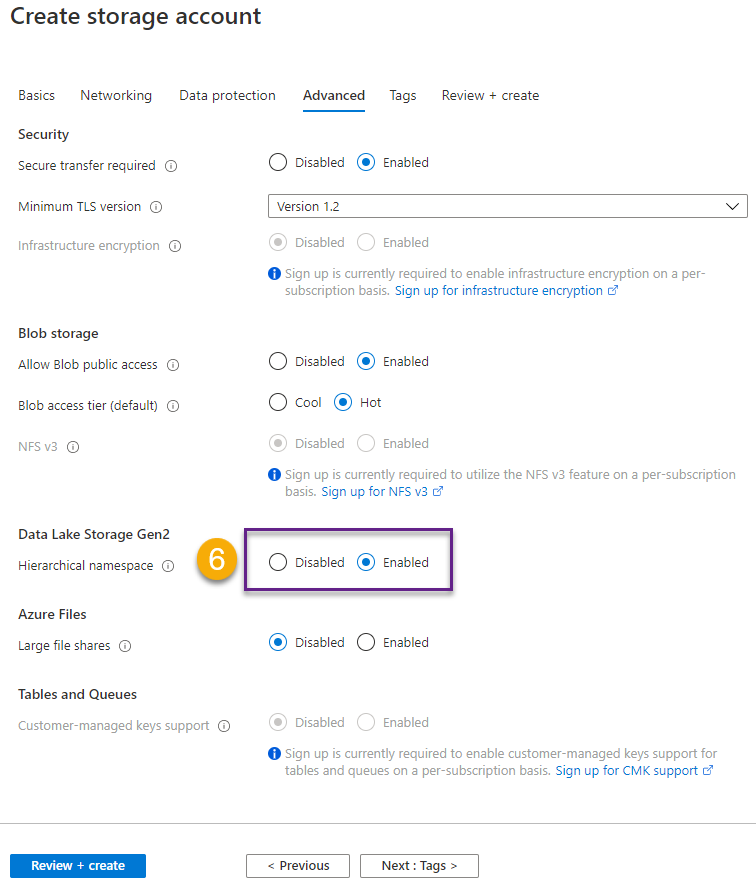
In the Advanced section, make sure to enable Hierarchical namespace. Then click Review + create to start deploying the resource.
An important takeaway is that Azure Data Lake Storage Gen2 (ADLS Gen2) is the convergence between Azure Blob Storage and Azure Data Lake Storage Gen1. In practice, this means that it combines the capabilities of both storage services, resulting in a cost-effective massively scalable big data storage.
A fundamental part of Azure Data Lake Storage Gen2 is the hierarchical namespace. In contrast to Blob Storage, where folders are virtual, in ADLS Gen2 files are organized in hierarchical directories, similar to directories in the file system on your computer. This is important both in terms of performance and security.
Performance-wise, I can for example search for a subset of data in a folder associated to a specific year. ADLS Gen2 will use partition scans for this case, instead of scanning the entire blob (as with blog storage).
ADLS Gen2 offers data-level security flexibility through access control lists (ACLs).
- ACLs allows to define granular security.
- ACLs are POSIX-compliant, meaning that ACLs are specified for every object (each file and directory) in the storage.
- ACLs determine if a security principal (user, group, service principal, or managed identity) has read / write / execute permissions to access an object in the storage.
What’s next
Now that we have provisioned the data storage for WTA Insights, let’s have a quick look at the newly deployed resource and create the folders that will act as repository for the tennis_wta dataset.🐳
Want to read more?
Microsoft learning resources and documentation:
Naming rules and restrictions for Azure resources
Recommended naming and tagging conventions
Introduction to Azure Data Lake Storage Gen2
 { DataWhale.ca }