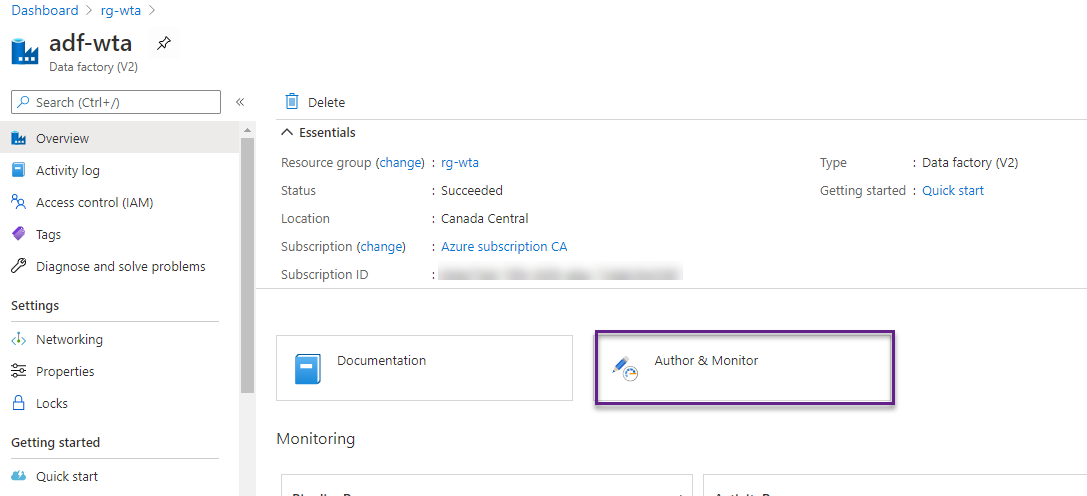
On the Azure portal, go to the newly created data factory and click on the Author & Monitor tile. This will launch the Azure Data Factory user interface on a separate tab.
On the Let’s get started page, click on the expand button on the top-left corner to expand the left sidebar.
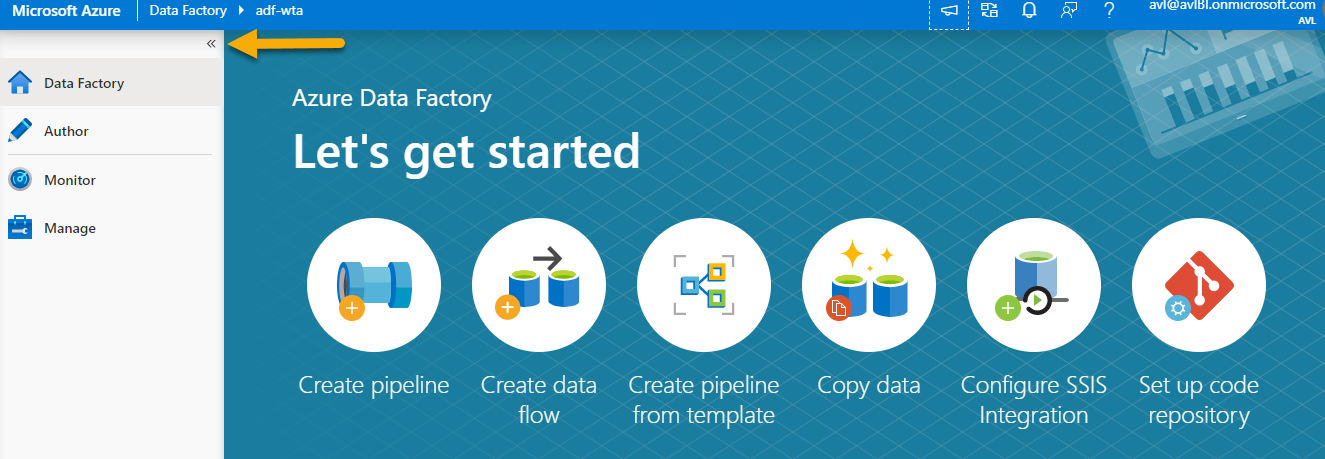
There are 4 tabs available:
- Data Factory – will bring you to the Let’s get started page
- Author – visually author and deploy data factory components
- Monitor – visually monitor pipeline and trigger runs, integration runtimes overview and create alerts
- Manage – provides access to the management hub. Here we can manage connections to on premises or cloud datastores, configure source control, and trigger settings
Top-level Azure Data Factory components are: pipelines, linked services, datasets, activities, data flows. We will look at these components in detail and how they can help us build the WTA Insights data workflow ingestion.
Linked service – Source
Linked services are like connection strings, which define the connection information that is needed for Data Factory to connect to external resources.
Recall that the csv files we want to ingest are located on github. The tennis_wta dataset by Jeff Sackmann is free for non-commercial use and is licensed under a Creative Commons Attribution-NonCommertial-ShareAline 4.0 International License. Please refer to the License section on the website menu above for more information.
Take a moment to explore the files in the repository and go through the readme.md file. We want to fetch the following files:
- match result files – containing all tour-level single matches of a season and have the filename format wta_matches_yyyy.csv
- players file – one file, named wta_players.csv
- ranking files – per the date of this post, there are 5 ranking files. No rule for the file naming format.
Locate the wta_players.csv file and click the Raw button to open the file in your browser without the github UI. Note that the file doesn’t include column headers. We will need this information later in the next post.
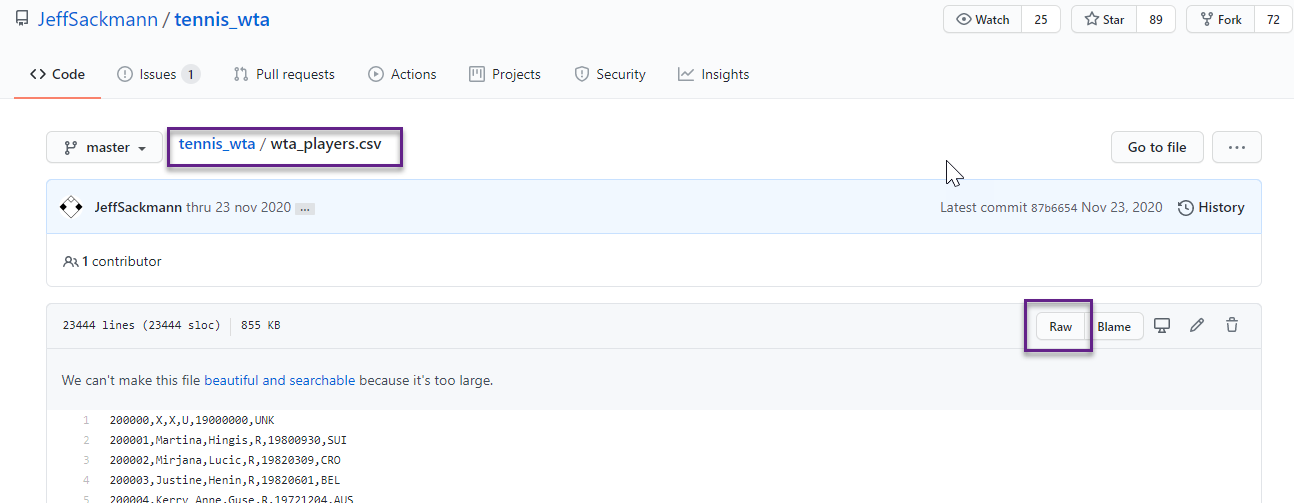
Once the file is open in your browser, copy the raw file URL: https://raw.githubusercontent.com/JeffSackmann/tennis_wta/master/wta_players.csv
We can access the data source through HTTP, by using the raw URL of the repository. That is the raw URL we just copied, without the file name: https://raw.githubusercontent.com/JeffSackmann/tennis_wta/master/
Switch back to the Azure Data Factory UI. The next step is to create a linked service that specifies how to connect to our data source.
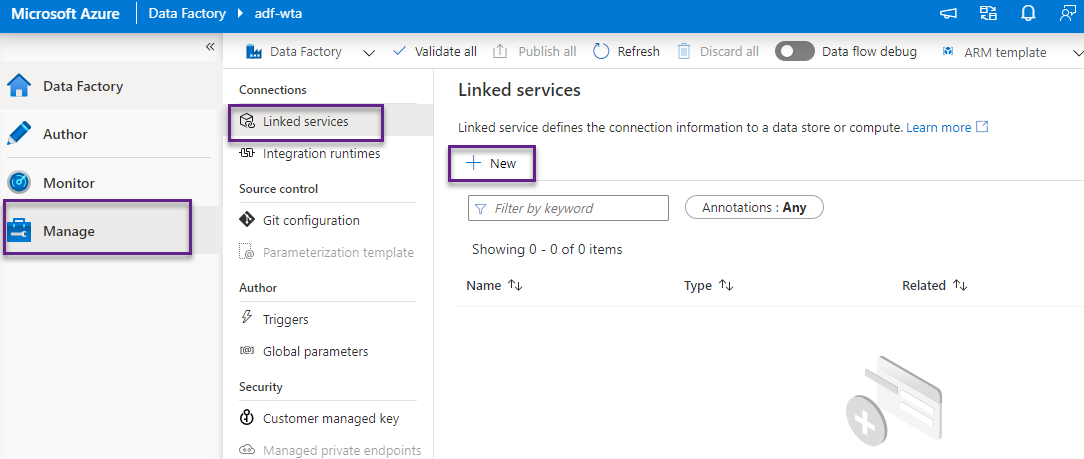
From the Manage tab, select Linked services in the Connections section, and click + New to create a new linked service.
In the New linked service panel, search for http and hit Continue.
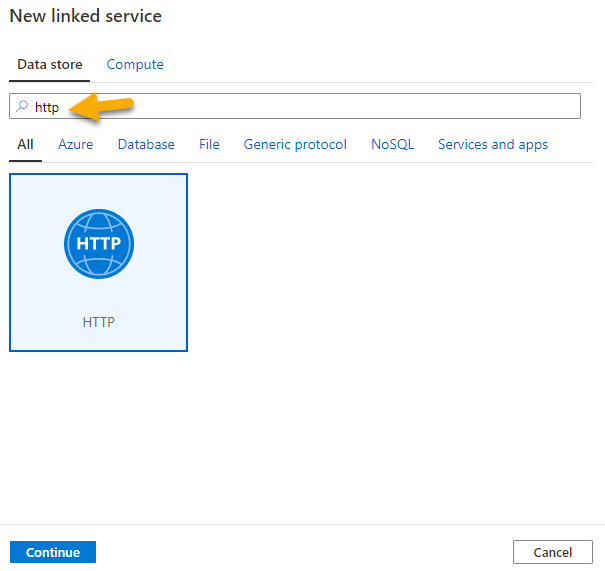
In the New linked service (HTTP) window, name the linked service ls_HTTP_tennis_wta. Leave the default integration runtime. In the Base URL field, provide the raw URL of the github repository.

Hit Test Connection to test your connection and then click Create to create the linked service for the data source.
Linked service – Destination
We will create a second linked service for the destination. We want to ingest the csv files in the data lake created in the previous posts. Please refer to the posts in the Kickoff series. We named the data lake dlswta.
Click on + New to create a new linked service. Locate Azure Data Lake Storage Gen2 and click Continue.
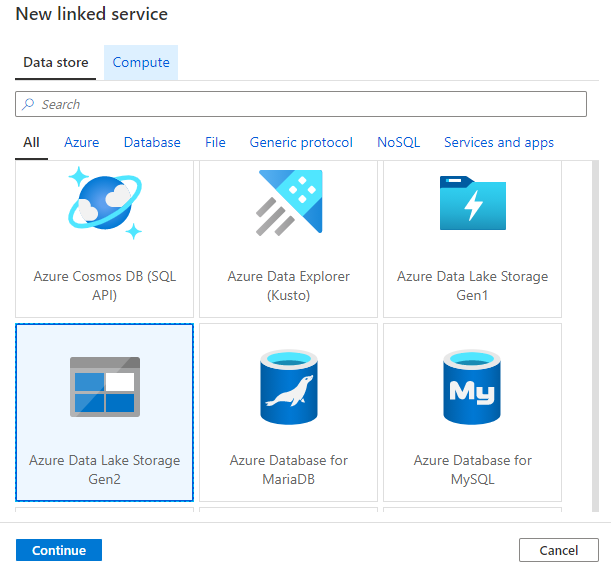
In the New linked service (Azure Data Lake Storage Gen2) window, name the linked service ls_ADLS_dlswta. Leave the default integration runtime. Select your Azure subscription, and select the storage account name (dlswta, or the name you provided when creating your ADLS gen2 storage). Test connection and then click Create to create the new linked service.

Now is time to save your work. You have probably noticed a notification on the Manage icon and next to the Publish all button.
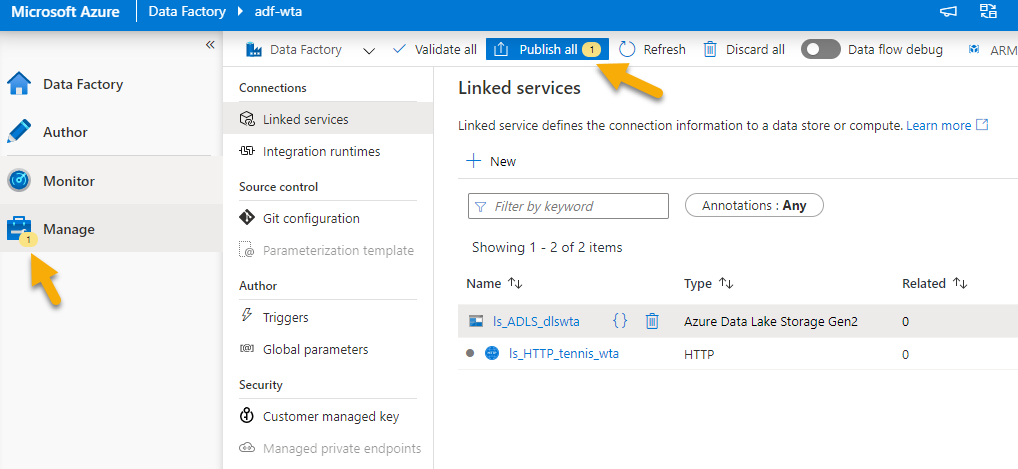
Click Publish all to save your linked services. You will get a notification when publishing is complete.
What’s next
Now that we have defined how to connect to the data source and destination, by creating the two linked services, it is time to create datasets to specify the data we want to use, and start building a pipeline.🐳
Want to read more?
Microsoft learning resources and documentation:
Introduction to Data Factory
Create a data factory by using the Azure Data Factory UI
 { DataWhale.ca }