Now that we have defined the connection information needed by ADF to connect to github and to our ADLS, by creating two linked services, the next step is to tell ADF what data to use from within the data sources. For this we need to create datasets.
Datasets identify data within the linked data stores, such as SQL tables, files, folders.
Dataset – Source
Let’s create a dataset to reference the wta_players.csv file.
From the Azure Data Factory UI, select the Author tab and on the Factory Resources blade, locate Datasets and click on the … button, then click on New dataset.

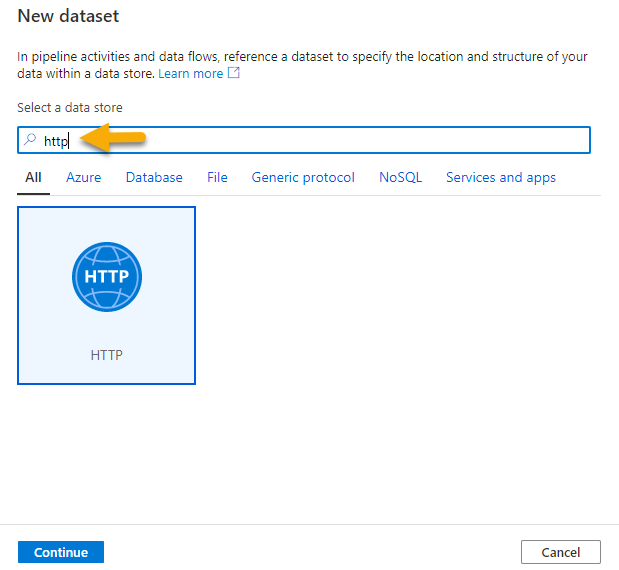
Search for http, select the HTTP dataset and click Continue.
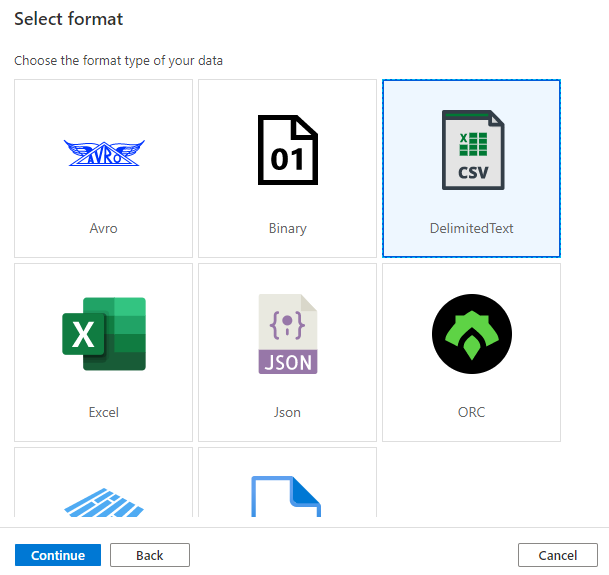
Select Format as DelimitedText csv and Continue.
Now we need to set the properties to represent our GitHub data. We will start with the wta_players.csv file. In the previous post, when consulting the raw wta_players.csv file in github, we saw that it doesn’t contain the column headers. We need this information now.
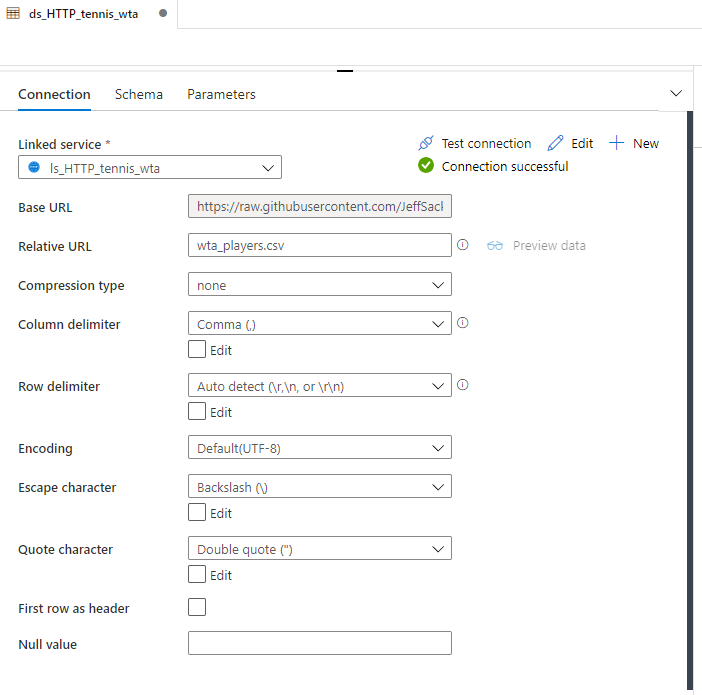
Name the dataset ds_HTTP_tennis_wta, and choose ls_HTTP_tennis_wta in the Linked service dropdown. Leave First row as header unchecked, and click OK.

Your dataset should look like this.
Dataset – Destination
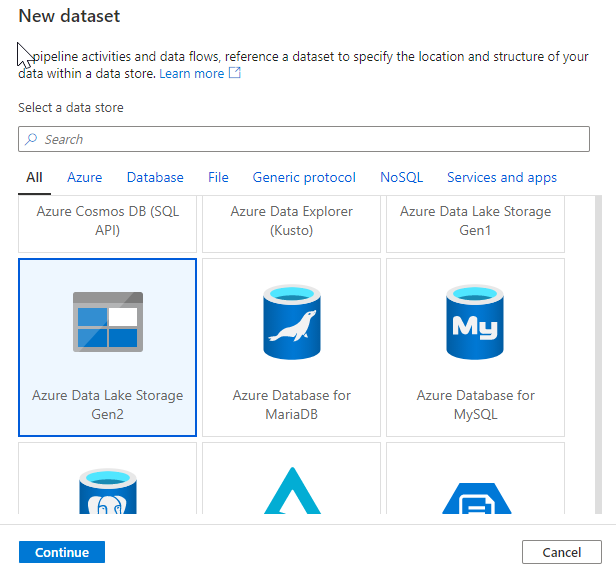
Click to add a New dataset and select Azure Data Lake Storage Gen2 from the list.
Name the dataset ds_ADLS_tennis_wta, select ls_ADLS_dlswta in the Linked service dropdown. Click on the folder icon and navigate the folder structure to select landing/players. Leave First row as header unchecked.
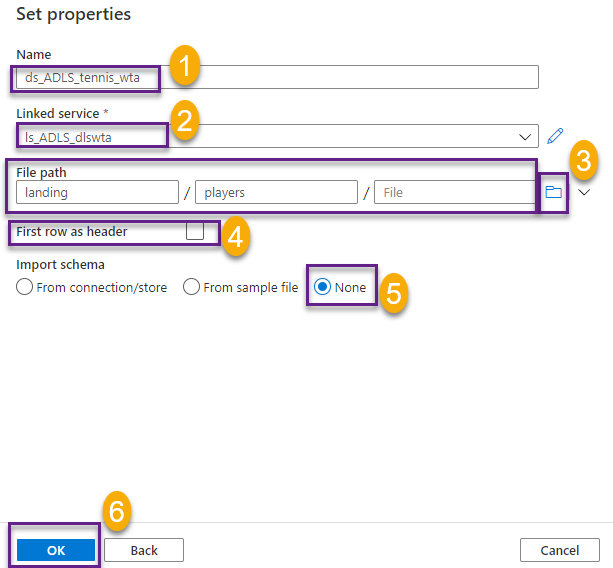
Your screen should now look like this.

Note that there are two pending changes. Select Publish all and hit Publish to persist the newly created datasets.

What’s next
Now we have the necessary artifact to create our first pipeline. We will start simple, by copying the wta_players.csv from github to adls.🐳
Want to read more?
Microsoft learning resources and documentation:
Datasets in Azure Data Factory
 { DataWhale.ca }