Let’s start by taking small baby steps. Our first pipeline will copy the wta_players.csv from github to our datalake. Then, we will learn to make some bigger steps. We will learn to implement more complex logic in our pipelines and make use of parameters, variables and loops. A second pipeline will fetch the wta_rankings csv files. A third pipeline will fetch the wta_matches_yyyy.csv files.
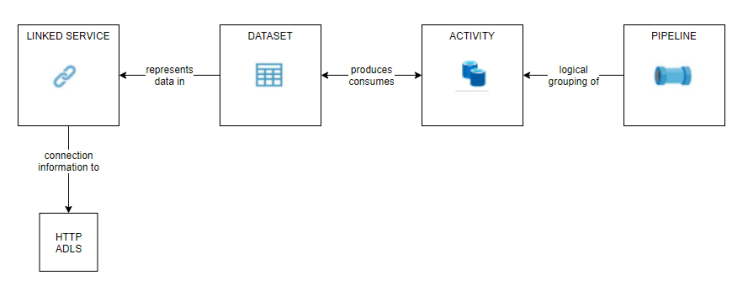
In the previous posts, we have defined the connection information for the source (github) and destination (adls), through linked services. We have created datasets representing the csv file we want to fetch. The next step is to create an activity that will copy the wta_players.csv to our adls.
A pipeline is a logical grouping of activities that together perform a task. A data factory can have one or more pipelines. The activities in a pipeline define actions to perform on your data.
Players Pipeline
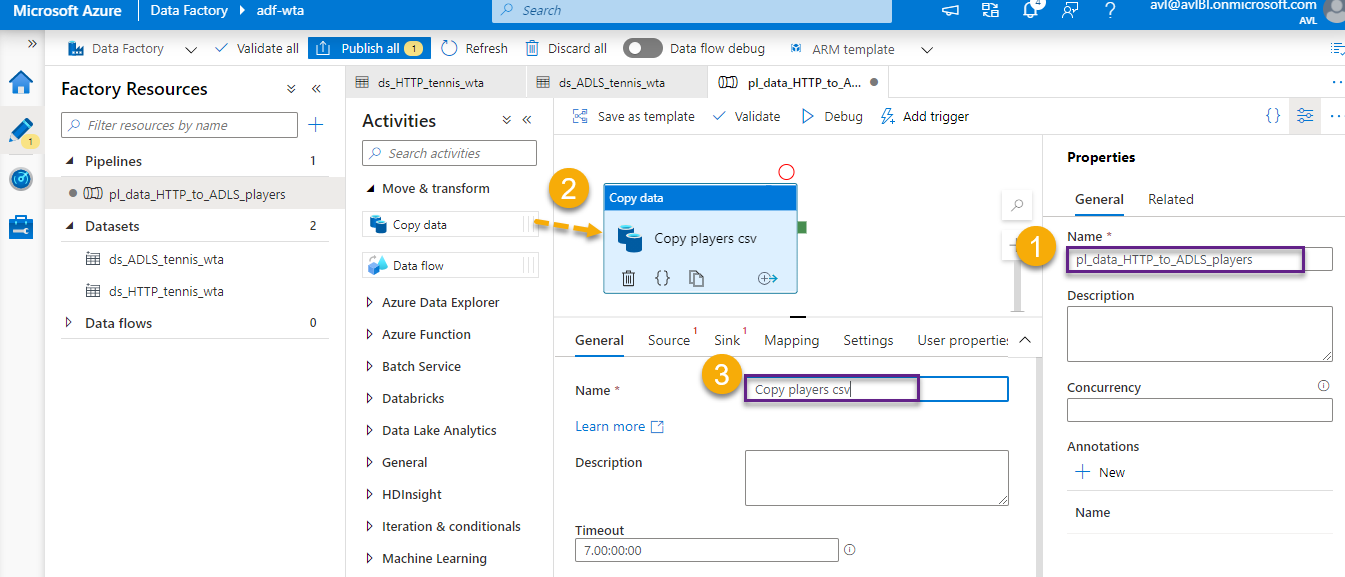
From the Author tab, in the Factory Resources blade, choose New pipeline.

Name the pipeline pl_data_HTTP_to_ADLS_players. From the Activities section, add a Copy data activity to the pipeline. In the General tab, name the activity Copy players csv.
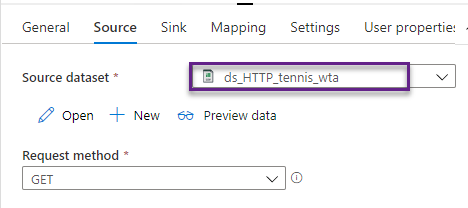
In the Source tab, select ds_HTTP_tennis_wta dataset.
In the Sink tab, select ds_ADLS_tennis_wta dataset.

Validate the pipeline to make sure we have no errors. We are now ready to run the pipeline in Debug and test that it works as expected.
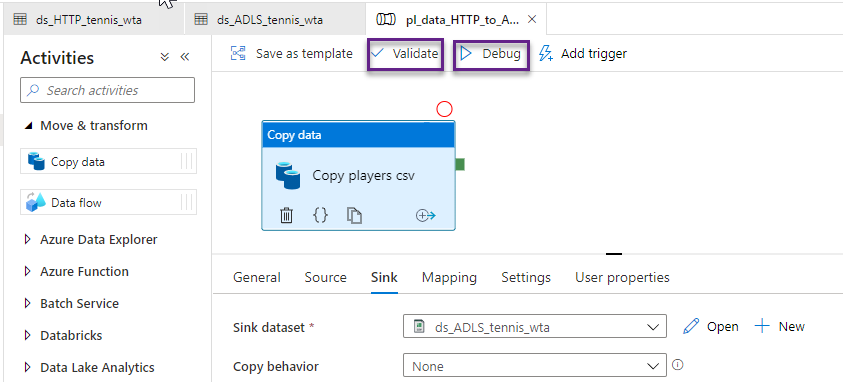
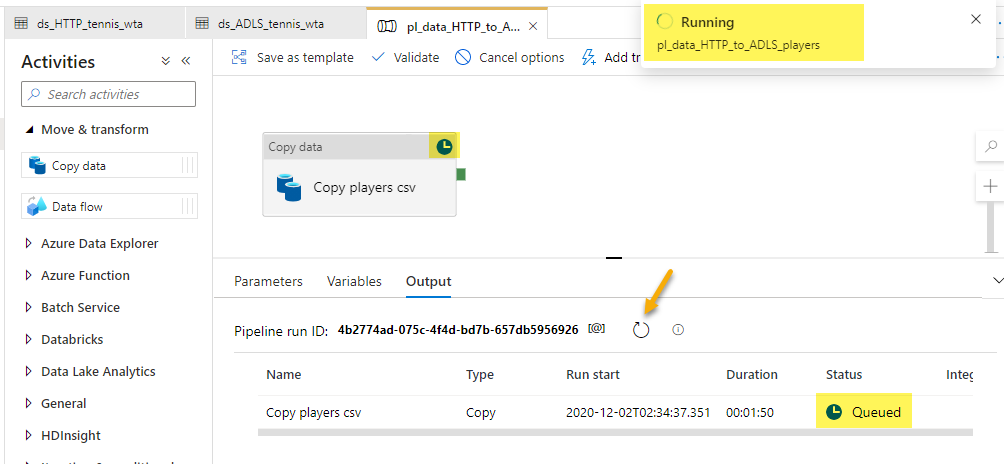
Debug will trigger a pipeline run. You can see the status of the execution in the Output tab. An icon on the top-right corner of the activity, shows its current execution status. You can refresh the status by clicking on the Refresh button.
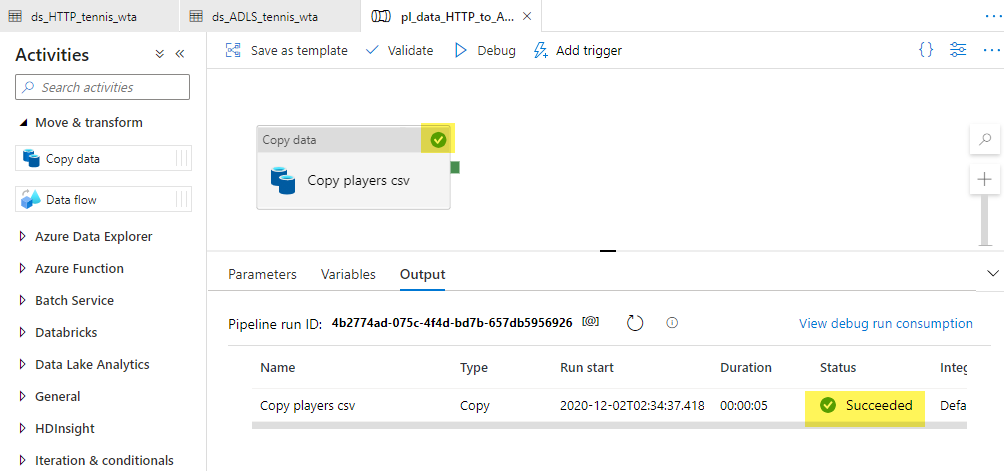
The debug run succeeded. We can now Publish all to persist our changes.
Let’s check that the pipeline did what it was supposed to. For that, the wta_players.csv file should now be in our datalake in the landing/players folder. Head over to Azure portal and locate Storage Explorer in your ADLS gen2 resource.

Hurray! Now switch back to Azure Data Factory UI. Another way to run the pipeline is by using the Trigger now option. The advantage is that, unlike Debug, the execution is now logged and you can review it from the Monitor tab. Hit Trigger now to run the pipeline using the last published configuration.

Switch to the Monitor tab and review the pipeline run.
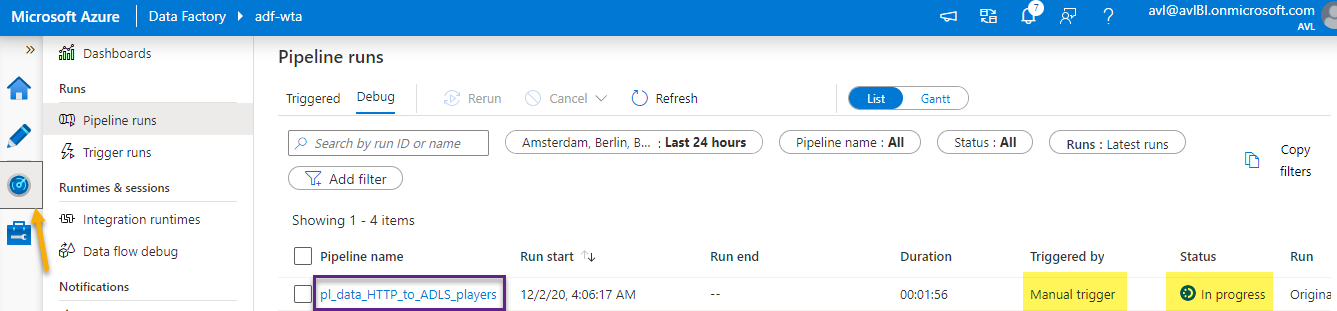
Click on the pipeline name. This will open a review of all activity runs inside the pipeline. You can review the activity runs in list mode or as Gantt chart.

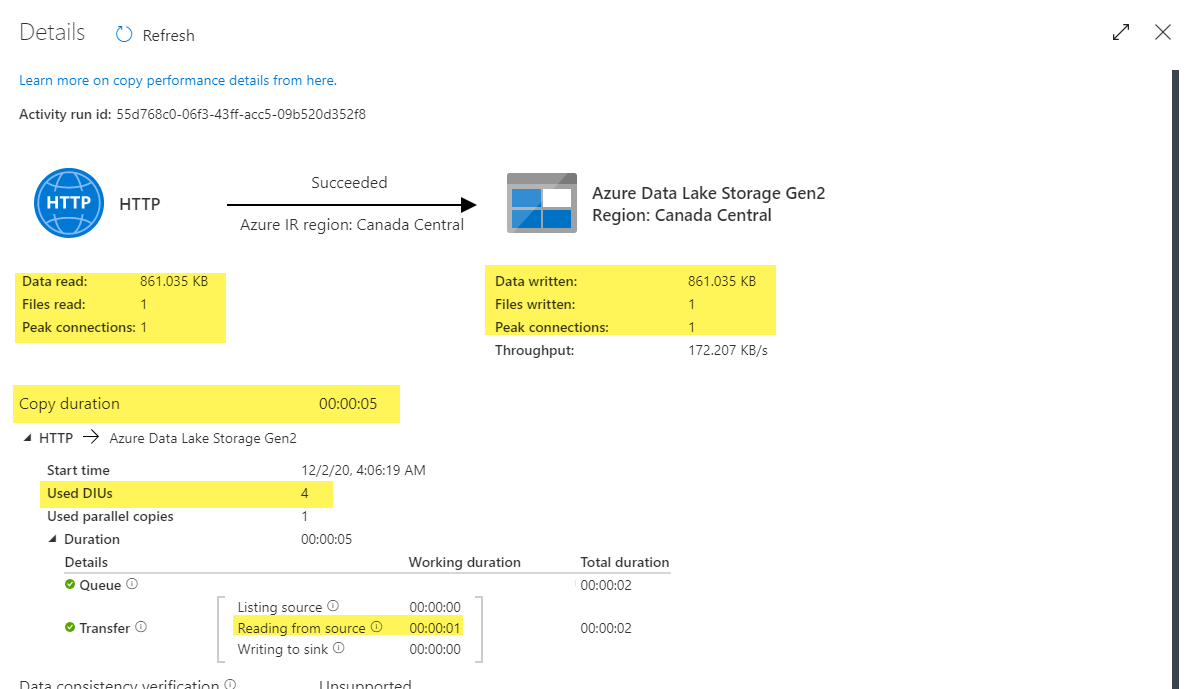
Our players pipeline is simple and has only one copy activity. Hover the mouse over the activity name and click the Details option.

The Details screen shows key info about activity execution including reads/writes, number of files copied, copy duration, and is especially useful when we need to troubleshoot copy activity performance.
What’s next
What about the ranking files? Let’s extend our data factory to fetch them too!🐳
Want to read more?
Microsoft learning resources and documentation:
Pipelines and Activities in Azure Data Factory
Monitor copy activity
 { DataWhale.ca }