So far, we have executed the pipelines in Debug or have run the pipelines once using the Trigger now option. To automate future loads of csv files we will now look at how to schedule pipeline executions using schedule triggers.
There are three types of triggers in ADF:
- Schedule – runs pipelines periodically (every hour, day, week, etc.)
- Tumbling Window – runs a pipeline at fixed-sized, non-overlapping time intervals
- Event-based – runs pipelines in response to an Azure Event Grid event
We do not have a timeframe for how quick the csv files are updated on the wta_tennis dataset after each tournament. For the purpose of this demo, we will schedule the pipelines for execution at the end of each month,
Schedule triggers
Pipelines and schedule triggers have many-to-many relationship, meaning that a trigger can kick off multiple pipelines and multiple triggers can kick off a single pipeline.
Let’s create a trigger to kick off the execution of all our three pipelines. Hear over to Azure Data Factory UI and from the Manage tab, select Triggers under the Author section.

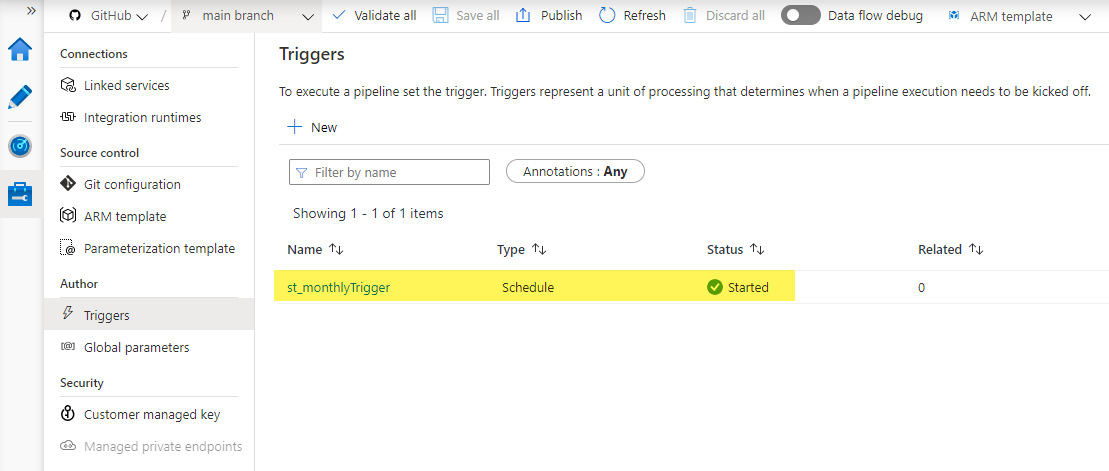
In the New trigger window, name the trigger st_monthlyTrigger and choose type Schedule. Select a Start Date, for example 1st January, set the Recurrence to Every 1 Month and select to execute on the last day of each month. You can also ensure bigger granularity for the pipeline execution by setting a specific time. Check the box Activated to activate the trigger once it is published.

At this point, your screen should look like this:
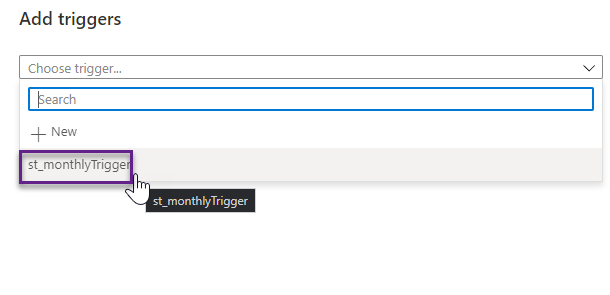
Switch to the Author tab to assign pipelines to the trigger. Select the pl_data_HTTP_to_ADLS_matches pipeline and click Add trigger > New/Edit. In the Add triggers window, select st_monthlyTrigger from the dropdown list .
Review trigger settings and click OK.
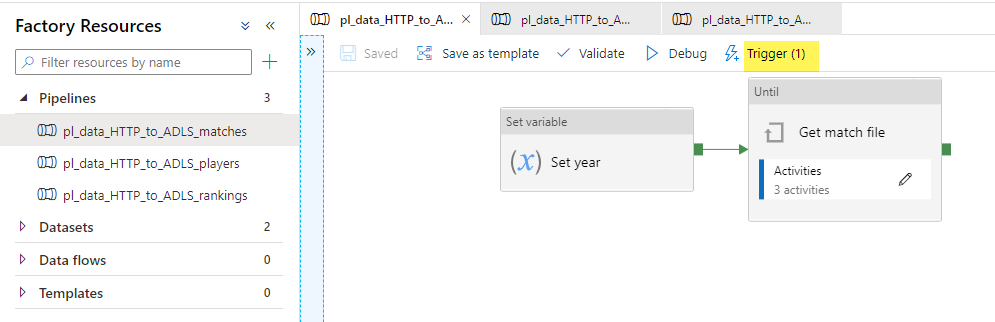
Repeat the steps to assign pl_data_HTTP_to_ADLS_players and pl_data_HTTP_to_ADLS_rankings pipelines to the trigger.
Switch back to the Manage tab, and note that our trigger has now 3 related pipelines. Make sure to publish the changes.
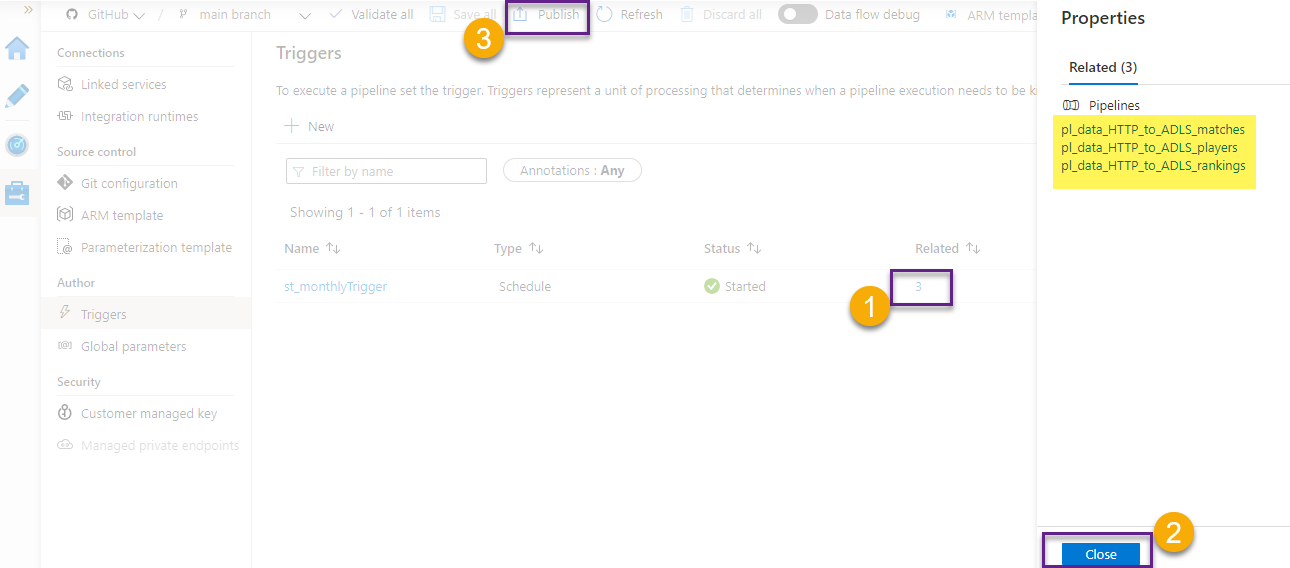
Note that the changes are pushed to the repository we have set up on the previous post.

What’s next
Next stop in our journey is Azure Databricks. We will create notebooks and use Python to process, cleanse and transform the csv files. Check the next series of posts on Azure Databricks to learn how this is done.🐳
Want to read more?
Microsoft learning resources and documentation:
Pipeline execution and triggers in Azure Data Factory
Create a trigger that runs a pipeline on a schedule
 { DataWhale.ca }